
An Overview
In real-time video applications such as live streaming, remote control systems, video conferencing and medical procedure devices, glass-to-glass latency is a critical parameter. High latency can lead to poor user experiences, delayed responses, and even system failures in mission-critical environments.
Glass-to-glass latency refers to the time it takes for a frame to travel from the camera lens (glass) to the display screen (glass). In many systems, a full frame readout—such as 33 milliseconds at 30fps—is a key contributor to overall latency. This includes many intermediate stages as shown below in the diagram. Latency can be measured at various points in the system, such as after capture, after encoding, and before display.
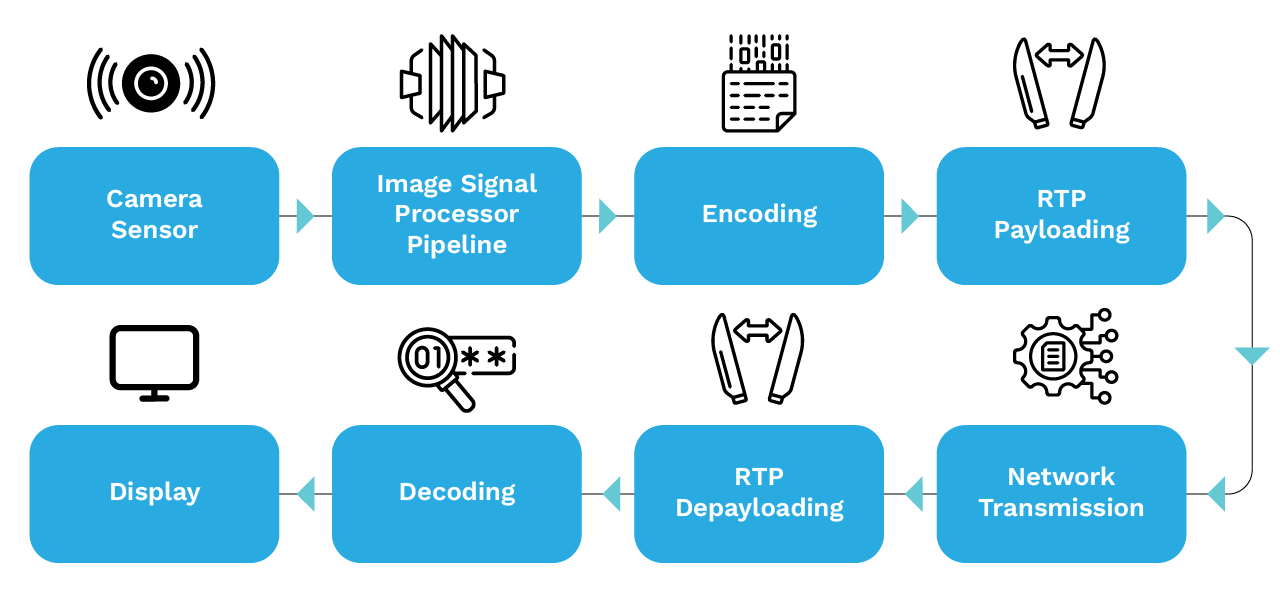
This blog explores key aspects of glass-to-glass latency and how to optimize it in real-time video streaming. The topics covered include:
- Gstreamer pipeline structure for network streaming
- Measuring and profiling techniques
- Latency optimization strategies
- Conclusion
1. Gstreamer Pipeline Structure for Network Streaming
Gstreamer is a pipeline-based multimedia framework for creating streaming media applications.
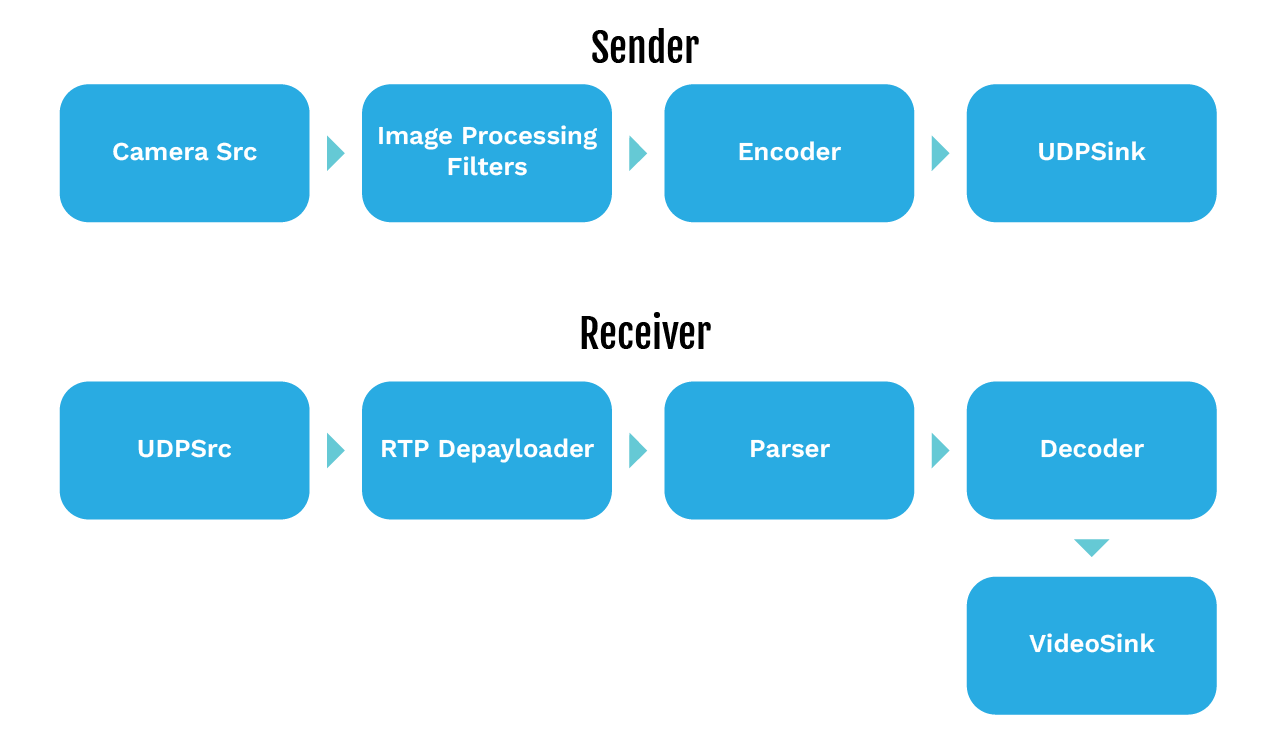
Video streaming over the network in Gstreamer involves two main pipelines: the sender and the receiver. These pipelines handle video capture, processing, encoding, packetization, transmission, and rendering. Some capture devices allow you to select the input channel (such as SDI or HDMI channel) for measuring glass to glass latency, which can be important for accurate testing. Below is a detailed breakdown of each stage with the technical considerations.
1. Sender Pipeline
Camera Source (serving as the video input; input can also be a video file for testing purposes) → Image Processing Filters → Encoder → RTP Payloader → UDP Sink
2. Receiver Pipeline
UDP Source → RTP Depayloader → Parser → Decoder → Video Sink
In technical considerations, note that the resolution of the video stream is often fixed by the onboard HDMI capture card, and only specific resolutions (such as 1080p) may be supported.
2. Measuring and Profiling Techniques
It is essential to accurately measure the glass-to-glass latency before attempting any optimization in the streaming pipeline. Several methods can be used to measure the overall end-to-end latency, along with the profiling tools that help identify any sub-latency within the pipeline elements.
2.1 Display Timer and Secondary Camera
Requirements
- Display rendering millisecond timer/An oscilloscope
- A secondary camera-to-capture timer difference
Procedure
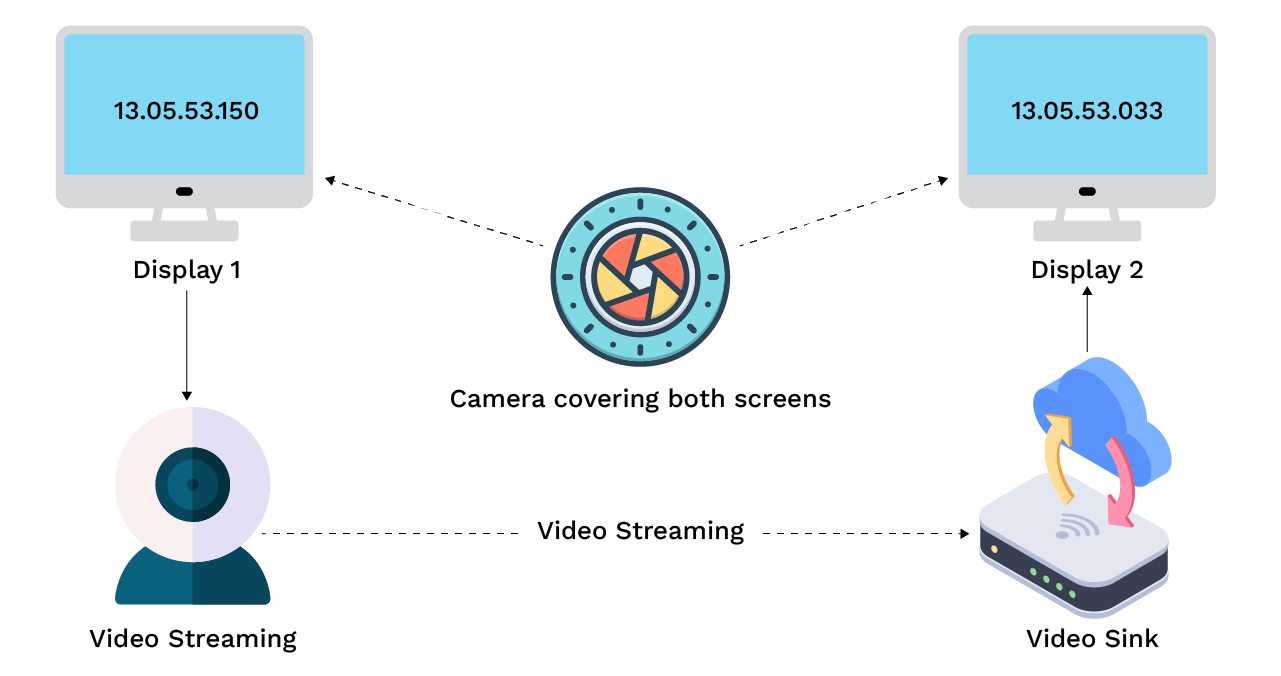
- One display shows a running timer (e.g., milliseconds counter). It can also use an oscilloscope with some unique signals.
- A camera captures this timer and sends the video to a receiver attached to an output display.
- A second camera is positioned so it can see both displays simultaneously (the original timer display and the output display).
- Record a short video capturing both screens together.
- Extract the frames and compare the timer values shown on the original display (a millisecond timer) with the output display attached with the receiver. Calculate the average latency of multiple samples by taking the sum of the measured latencies and dividing by the number of samples.
Pros
- It is simple and inexpensive as it uses standard cameras and displays.
- It does not require one to design any complex hardware device.
Cons
- It requires manual analysis to compare the time difference.
- The accuracy depends on the secondary camera framerate, exposure and display refresh rate.
2.2 Photodiode and LED Method
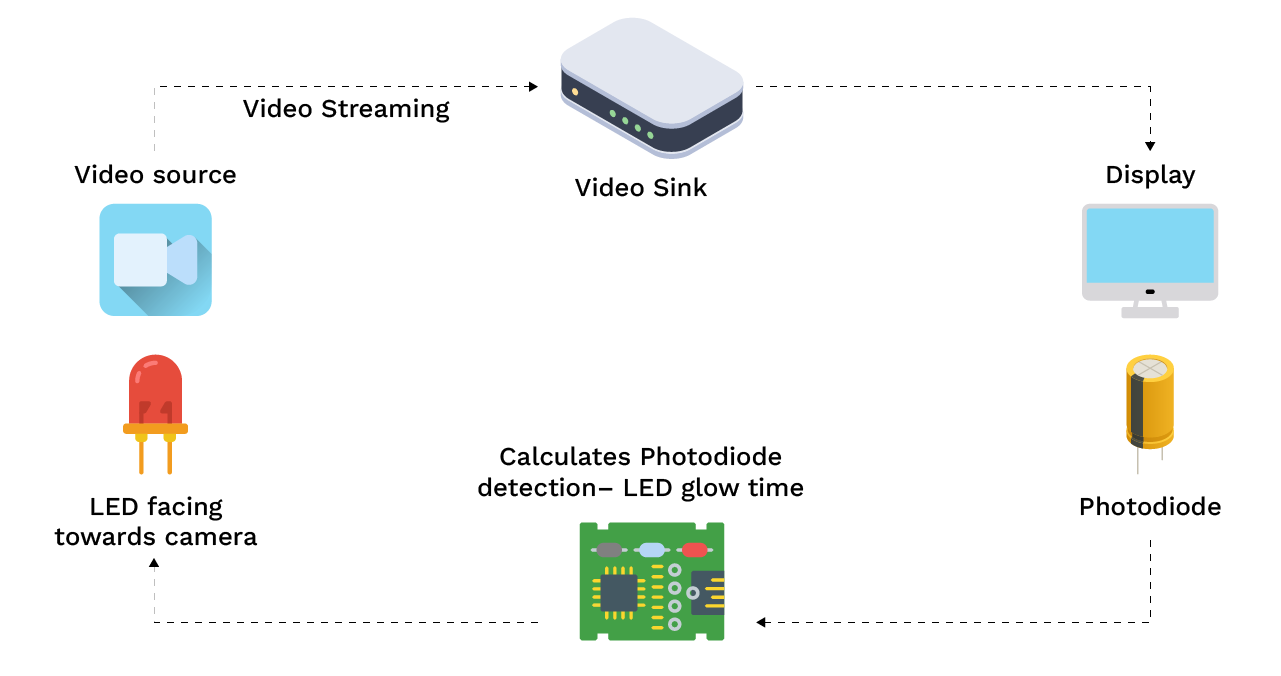
Requirements
- LED, a photodiode, a microcontroller
Procedure
- Attach an LED in front of the camera with a dark background.
- Place a photodiode on the output display to detect when the corresponding frame appears.
- Connect both the sensors to a microcontroller or oscilloscope to measure the time difference between the LED on and the photodiode light detection.
Pros
- It is extremely accurate.
- There is no need for manual video analysis.
- It works well for the automated latency testing.
- It is best for precise latency measurement in production or research environments.
Cons
- It requires additional hardware.
- It is a slightly more complex setup.
2.3 GStreamer Latency Profiling Tool
The GStreamer latency profiling tool can be used to measure the latency taken by each of the filter components (encoder/decoder, payloaders, image processing elements), which can be useful while optimizing the overall glass-to-glass latency.
Requirements
- GStreamer compiled with trace support (make sure to add -Dcoretracers=enabled and -Dtracer_hooks=true option in GStreamer compilation).
- Latency plotter tool: https://github.com/podborski/GStreamerLatencyPlotter
- On Linux systems, you may need to run a specific command to enable trace support before building GStreamer.
Procedure
- Setting the environmental variables when running GStreamer pipeline or application.
- Use the following command:
GST_DEBUG_COLOR_MODE=off GST_DEBUG=”GST_TRACER:7” GST_TRACERS=”latency(flags=pipeline+element)” GST_DEBUG_FILE=sublatency.log < Gstreamer pipeline / Gstreamer application>
- The profiling tool analyzes a sequence of video frames to measure latency at each stage of the pipeline.
- If there is a configuration or communication error during setup, the console will display an error message, and troubleshooting steps may be required.
- Debug messages will be output to the console, providing detailed information about latency adjustments and pipeline status.
- The debug information is saved to a file (e.g., sublatency.log), and this file can be analyzed for further insights.
- Plot the results using the GstreamerLatencyPlotter (node main.js traces.log). The tool can process the log file and output a table of latency numbers for each pipeline element.
- The results can be exported to a CSV file for further analysis.
Notes
- When using GST_DEBUG, you can monitor the debug output in the console for real-time feedback or review the saved file for a detailed breakdown.
- Calculating the average latency involves taking the sum of all measured latencies and dividing by the number of samples, as reported in the output table.
3. Optimizing Latency
Latency in a GStreamer pipeline is influenced by multiple subcomponents, capture, processing, encoding, transport, decoding, and rendering. Each stage introduces its own latency.
It is important to note that the individual optimizations may not immediately reflect in the total glass-to-glass latency. For example, if the capture device operates at 60 FPS, each frame interval is approximately 16.6 ms. This means that even if one were to reduce the processing latency by 5–10 ms, the improvement might not be visible until multiple optimizations accumulate across the pipeline. Latency optimization is cumulative. Small improvements at each stage add up to significant gains when combined.
When analyzing pipeline components, starting with a basic encoding profile or mode can help establish a baseline for latency optimization. Some configuration parameters can be left at their default values, but others may need to be explicitly set to achieve optimal latency.
We will analyse each pipeline component that contributes to latency and apply targeted optimizations to minimize delays across the entire workflow.
Note: In the following examples, we use GStreamer pipelines based on the NVIDIA Jetson platform. However, the overall structure and concepts remain similar across other platforms, with only minor adjustments.
3.1 Camera Source
- Exposure time: The exposure time of a camera sensor affects how long each pixel (or row of pixels) is exposed to light, which is a component of the overall image capture time. It has minimal impact on the latency if configured at less than the framerate, however it is recommended to turn the Auto-Exposure feature off if the light condition is not very variable in the final application.
- Framerate: The framerate has a significant impact on latency, as it determines the time gap between consecutive frames. A lower framerate increases this interval, resulting in higher end-to-end delay. To minimize latency, it is recommended to use the highest framerate that the camera and pipeline can reliably support.
- Buffering: Reducing buffering at the camera source element can significantly lower latency by minimizing internal frame queues. While this may increase the risk of frame drops, it is often an acceptable trade-off for latency-critical applications where real-time responsiveness is prioritized over perfect frame delivery. Some GStreamer camera sources plugin provides properties to configure buffering or else they can be modified in the plugin source code.
- Zero copy mechanism: Two elements are doing zero-copy when the data produced by one element is used by the other element without requiring implicit memory transfer. Many vendors provided camera source plugins supports zero copy DMA buffers to avoid additional memory copy for passing it to the encoder, e.g. one can leverage zero-copy using io mode= dmabuf in v4l2src. It can reduce latency and CPU utilization.
3.2 Encoder
- Preset: Many encoder plugins support various presets that configure encoder parameters based on the trade-off between the compression size and encoding latency. It is recommended to use faster presets for lower latency
e.g. ultrafast, fast, medium, slow. - Hardware Acceleration: It is highly recommended to use a hardware accelerated encoder plugin (e.g. nvv4l2h265enc, v4l2h265enc.). It can significantly improve CPU utilization and latency e.g. some vendor provided plugins provide max perf property that can reduce latency in cost of increased power consumption (maxperf-enable=1).
- Bitrate-mode: Configuring constat bitrate mode can help in latency fluctuations in case of varying quality videos. It is recommended to use the CBR (constant bitrate mode) in live streaming use-cases.
- B-frame: Removing the b-frame from the stream can help in reducing encoding time. Many encoder plugins support a no-b-frame property.
- Smaller IDR Interval: A decoder needs an I-Frame to decode the subsequent frames (P, B-frames). If a receiver joins mid-stream, then it will have to wait for the I-frame to start decoding and that introduces the latency. We can also configure rtsp server to request IDR-frame before starting a new stream, if the encoder provides support to the Force-IDR generation.
Sample Sender Pipeline:gst-launch-1.0 nvarguscamerasrc ! ‘video/x-raw(memory:NVMM), width=(int)1920, height=(int)1080, \
format=(string)NV12, framerate=(fraction)60/1’ ! nvv4l2h265enc bitrate=20000000 \
preset-level=2 maxperf-enable=1 control-rate=1 num-B-Frames=0 iframeinterval=10 \
! h265parse ! rtph265pay pt=96 ! udpsink host= port=8001 sync=false
3.3 Network Elements
- RTP Jitter buffer: It is recommended to avoid the rtpjitterbuffer element at the receiver pipeline if the streaming is in a local network or if the network conditions are stable. Else try to reduce the jitter buffer size as much as possible.
- Udpsink: Use sync=false property to send a packet as soon as it arrives to reduce the latency.
3.4 Decoder
- There is not much to tweak on the decoder side, however some hardware accelerated plugins support high performance mode which can help to lower latency, (nvv4l2h265 enable-max-performance=1).
3.5 Hardware Clocks
- Increasing hardware clocks (ISP, Encoder, Decoder) can decrease overall latency at the cost of increased power consumption.
3.6 Display
- Display refresh rate: It is recommended to use the display with a higher refresh rate as it updates the image on the screen more frequently, shortening the time between frames.
- Displaysink: It is recommended to use the sync=false property in the Gstreamer display sink (e.g. xvimagesink, waylandsink) property. The sync=false display frames as soon as it arrives instead of at the scheduled presentation time based on the timestamps which can help in lowering the latency,
e.g. waylandsink sync=false.
Sample Receiver Pipeline:gst-launch-1.0 udpsrc address= port=8001 \
caps=’application/x-rtp, encoding-name=(string)H265, payload=(int)96′ ! rtph265depay \
! queue ! h265parse ! nvv4l2decoder enable-max-performance=1 ! nvvidconv ! queue ! \ waylandsink sync=false
4. Conclusion
Achieving low glass-to-glass latency in a GStreamer pipeline requires careful tuning of every stage, from capture to display. There is no single setting that guarantees minimal delay instead, it is about understanding where the latency originates and balancing performance, stability, and visual quality.
By accurately measuring the latency, using high-framerate capture, minimizing buffering, and leveraging low-latency encoders and sinks, one can bring the end-to-end delay down to tens of milliseconds. Ultimately, the right configuration depends on the specific application whether it is live streaming, robotics, or real-time video analytics but the principles remain the measure, tune, and iterate.