

Thermal throttling is one of the most overlooked app killers, yet developers rarely talk about it.
Overview
Thermal throttling is a system-level behavior in modern Android devices that kicks in when the phone overheats: the OS lowers CPU and GPU speeds and may deprioritize background work, so app performance degrades gradually and often invisibly to protect the hardware. Every Android developer runs into it at some point, and it is easily one of the most frustrating problems to debug especially if you work on app performance, user experience, or AI-powered features that sustain heavy workloads.
During development, everything seems perfect. Animations are smooth, API calls are fast, scrolling is also smooth, and there are no obvious frame drops or ANRs. When QA evaluates the app, everything passes, and the release moves forward with confidence.
Then real-world usage begins and reality hits. Below are samples of the reviews that follow:
“App becomes slow after a while.” “Game lags after 10 minutes.” “Phone heats up and everything stutters.” “Works fine initially, then becomes unusable.”
When one tries to reproduce the issues, there may be no issues. The behaviour of the app is as expected. Performance feels stable, there is no overheating, no lag, and short testing sessions look completely fine.
This is when one starts digging deeper. A check for memory leaks is performed and nothing is found. The threading and background work are analysed. The architecture, the UI rendering, the network flow, are all reviewed and found to be good.
Yet, out in the real world, the app is clearly slowing down and degrading over time. That silent drop in sustained performance is exactly why thermal throttling matters: it hurts responsiveness, increases battery drain, frustrates users, and can damage retention and brand perception even when the app looks healthy in short test runs.
What follows looks at how thermal throttling shows up in Android apps, why it is so hard to detect, which hardware and environmental conditions make it worse, how AI workloads amplify the problem, and what Android thermal APIs, thermal-aware architecture, workload management, and testing strategies can do to reduce it.
Common Challenges in Detecting Thermal Throttling
Thermal throttling does not behave like bug:
- It does not appear immediately
- It depends on how the device temperature changes after certain time
- It behaves differently across devices, environments, and user habits
- It usually happens only during sustained or heavy workloads
In other words, teams must determine the right moment for longer thermal testing instead of relying only on a typical 2-to-5-minute QA cycle. Performance testing generally falls into different strategies depending on when in development it is done.
What Exactly Is Thermal Throttling?
Thermal throttling is a built-in protection mechanism in modern mobile device hardware.
When the device temperature goes beyond safe operating limits:
- The CPU clock speeds are reduced by the system
- The GPU performance gets limited
- Background processes get deprioritized by the system
In other words, the device slows itself down to prevent overheating and it is an intentional mechanism. From the application’s perspective, nothing changes. However, the hardware is no longer running at full performance capacity.
The Invisible Degradation
Here is what happens behind the scenes:
- CPU and GPU speeds get scaled down
- Frame rendering becomes slower
- Background tasks start getting delayed
- Input latency increases
- Animations begin dropping frames
However, none of this throws up any exceptions or crashes. There may be no logs pointing to the problem.
That is because the system is simply doing what it was designed to do in the case of overheating which is to protect the hardware from overheating. The app just ends up paying the performance cost.
The Android Challenge for Mobile Devices
No active cooling. No fans. Just passive heat dissipation through the chassis, with only limited air exposure around the device to help transfer heat away.
Unlike laptops and gaming consoles, smartphones almost rely entirely on passive cooling through heat spreaders, graphite layers, and the phone’s body itself. Blocked vents or restricted airflow around the device can trap heat and cause performance drops due to overheating. Dust accumulation can further block airflow paths and contribute to thermal throttling on devices or accessories with vent openings.
That creates a fundamental limitation:
- Heat can only dissipate as fast as the surrounding environment allows
- There is no active mechanism to push heat out of the device because of the structure
- Once the phone heats up, it tends to stay hot for longer
From a system perspective, this means that:
- The thermal buildup becomes unavoidable during sustained workloads
- The cooling is slow and does not happen in a faster way
- The system eventually needs to reduce performance to avoid overheating
In short, the app can ramp up performance instantly, but the device/hardware cannot cool down at the same speed.
Tight Hardware Packing
Everything generates heat, and everything shares it.
Modern smartphones are built incredibly dense to make slimmer devices:
- CPU cores (both big and little cores)
- GPU
- NPU and AI accelerators
- Modem hardware, especially power-hungry 5G supported hardware
- Battery, which also generates heat during charging
All of this exists inside a tightly packed thermal packaging. Heat transfer efficiency depends on the internal materials and interfaces, including precise vapor-chamber structures and the contact layers between components. Vapor Chambers can provide thermal conductivity several times higher than graphite sheets, but if thermal paste or a similar interface material degrades, heat transfer worsens and throttling can occur sooner.
What this translates to in practice:
- Heat generated by one component affects the others
- A heavy GPU workload can indirectly heat up the CPU
- Network activity, especially 5G usage or poor signal conditions, adds unexpected thermal load
- Battery heat during charging also contributes to the overall system temperature
So even if the app is “just doing CPU work,” the device may already be under thermal stress or overheating because of:
- Background sync activity
- Poor or unstable network conditions
- The device is charging
The app is not operating in isolation. It is sharing a limited thermal budget with the entire system and other applications.
Sustained Real Usage
Real Users Do not Use Apps Like QA Teams Do!
In testing environments, usage is usually very controlled:
- Sessions are short
- Interactions are predictable
- Devices are often cool before testing begins
In the real world, user behaviour is completely different:
- People scroll through feeds endlessly
- Watch videos for long time
- Fast switching between multiple apps
- Leave apps, background services, and device features active for exceptionally long periods of time
On older devices, limited cooling and memory headroom make sustained sessions more likely to degrade over time.
All this creates a heavy load in contrast to the short performance bursts during QA.
Key Implications
- CPU, GPU, and other components do not get enough idle time to cool down
- The device’s heat keeps increasing gradually over time
- Performance degradation happens slowly and progressively instead of all at once
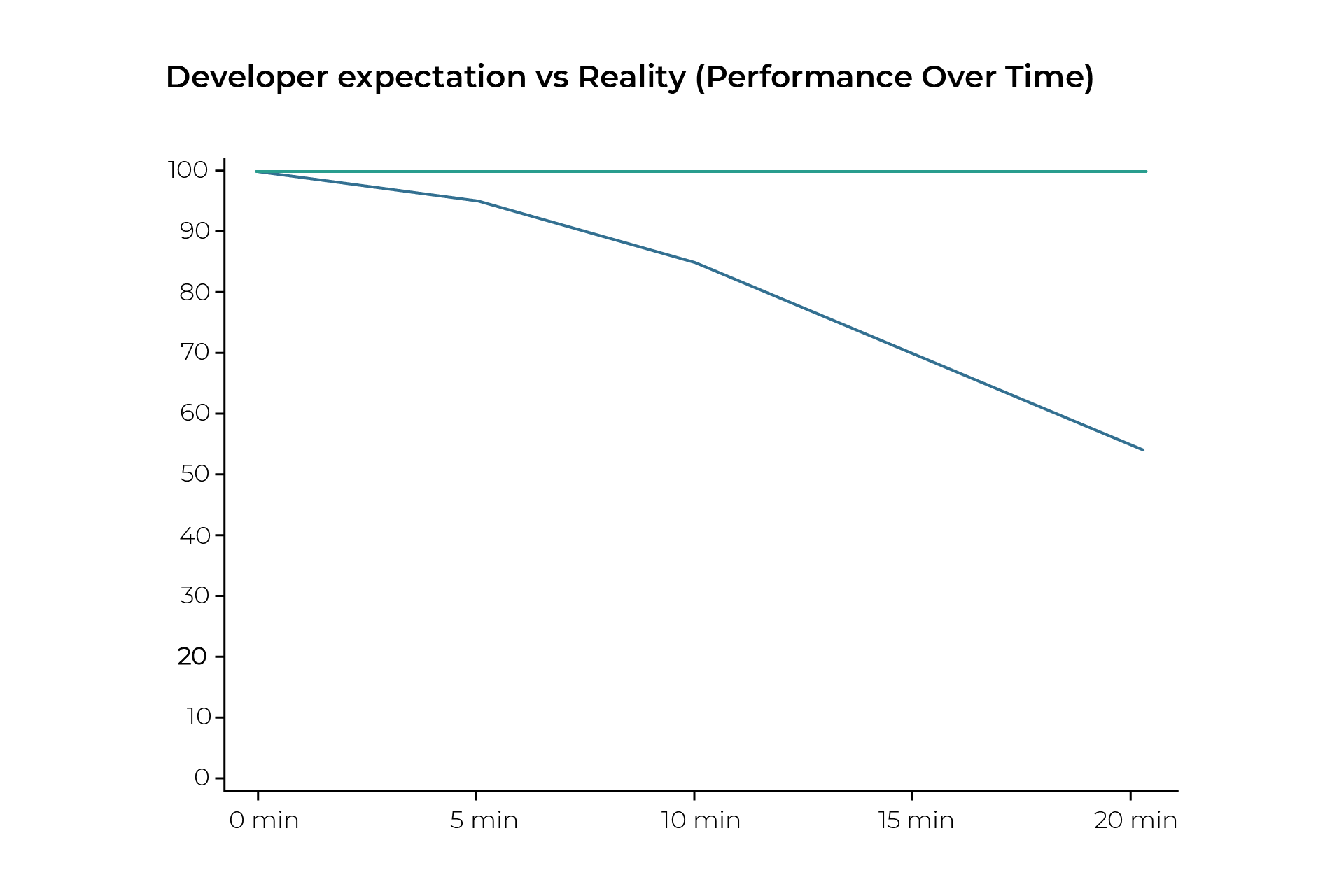
- The app will perform perfectly during the first few minutes but will behave completely differently after 20 to 30 minutes of continuous usage.
Features such as face unlock can consume around 1GB of RAM on some Android devices, adding pressure during long sessions.
Most developers never evaluate their apps for this long under real-world usage conditions. Removing a thick phone case during intensive use can also improve heat dissipation.
Environmental Factors That Make It Worse for Older Devices
Certain conditions can make thermal throttling happen much faster.
Thermal throttling is not caused by only one app. External conditions can heavily influence it as well.
Charging:
- Charging the device itself generates significant battery heat
- Fast charging increases heat even more, which is extremely common on modern devices
- As a result, the system starts to operate much closer to its thermal limits
Mobile Data (4G and 5G):
- Poor signal strength forces the modem to use higher transmission power
- The modem works harder, which generates additional heat
- Continuous data usage such as streaming, video calls, or uploads creates sustained thermal load
Environment Temperature:
- Hot environments reduce the device’s ability to dissipate heat efficiently
- Phones start operating at a higher temperature
- Cooling down becomes significantly slower
- Additionally, keep openings clear and clean dust from vents or attached cooling accessories regularly to help prevent throttling.
The Dangerous Combination
Now combine all of these factors together: charging, mobile data usage, hot weather, and heavy app activity.
This is a worst-case scenario for overheating, and this happens far more often in real life than the developers realize.
For example:
- The user is outdoors in hot weather
- Watching reels or videos continuously, creating a GPU and video decoding load
- Using mobile data, which heats up the modem
- Charging the phone at the same time, adding battery heat on top of everything else
In this state, thermal throttling can kick in within minutes and the performance can drop significantly. The app often gets blamed, even when it is only a small part of the problem
What Users Actually Feel and Notice
- User notice inconsistency and laggy behaviour from app.
- Smooth performance slowly turns into lag and frustration
- FPS drops gradually over time
- Touch latency starts increasing
- The UI begins to fell slow and unresponsive
Causes and Effects
The Developer Blind Spot
Most apps are evaluated under conditions like:
- Cold starts
- Short usage sessions
- Debug builds
- Ideal environmental conditions
Developer Expectations vs Reality:
The Hidden UX Cost on App’s Performance
Thermal throttling does not only reduce performance. It slowly effects the user trust.
From the system perspective, everything is functioning exactly as designed. However, from the user’s perspective, the app looks like it is falling apart.
That gap between system behaviour and user perception is where the real damage happens.
Users Do Not Blame Hardware. Users do not think in terms of:
- CPU frequency scaling
- Thermal limits
- System throttling policies
Instead, they think in terms of experience:
“This app was smooth… now it’s laggy.”
Even when:
- The device is overheating due to charging
- The network is adding extra thermal load in the background
- Multiple apps are competing for same shared system resources
None of those system details matter to users when the app is the only thing they see; they just want reliable access to the app or essential services, so the app gets blamed when anything goes wrong.
Retention Drops
- When retention drops, consistency becomes much more important than peak performance. An app that is always “good enough” is displayed as much better than one that starts out incredibly fast but then slows down.
- Thermal throttling causes exactly this kind of inconsistency:
During the first few minutes: The experience is smooth and responsive
Later: The app begins to stutter, lag, and suffer from delayed interactions
From the user’s perspective:
- They think the app is unreliable
- They think the app behaves oddly
This has a direct effect on:
- Length of sessions
- Frequency of returns
- Retention over time
- Users leave unreliable apps!
- Impact on the Battery
Slower performance often means the device ends up consuming more energy overall.
When throttling kicks in, the following happens:
- The CPU runs at a lower frequency
- Tasks take longer to finish
- Threads stay active for much longer periods
This chain of events leads to a few major issues:
- Increased total CPU active time: The processor needs to work for longer stretches
- More background wakeups: The system gets interrupted more frequently
- Higher overall energy drain: The device burns through more battery power
Instead of the ideal scenario where fast execution leads to quick idling and power savings, the following things happen instead:
- Slow execution: The app takes longer to process tasks
- Prolonged activity: The device stays active far longer than it should
- Battery drain: The constant, extended workload rapidly eats away at battery life
If the app is already doing heavy work, like media processing or AI inference, this effect is faster. To users, it is simply frustrating: “This app drains my battery.” They may not know or care that the root cause is thermal throttling.
Brand Perception
- User perception of the performance directly shapes their opinion of the overall brand quality. Users do not separate:
- Engineering complexity
- Device constraints
System-level limitations
- They map their overall experience directly to the quality of the product:
- Smooth experience means feels premium
- Laggy performance means feels cheap
- Consistent behaviour means feels reliable
- Degrading performance means feels poorly built, hurts basic functionality, and does not improve user experience, even when the root cause is system heat
- Thermal throttling has a very distinctive pattern. The initial performance is great but then it deteriorates over time. It is an especially damaging pattern because it makes the whole experience feel like:
- Poor optimization
- Lack of polish
- Weak engineering
- Even if the code is technically sound and correct.
Modern Apps and Their Inherent Disadvantages
- 120Hz rendering: Pushing higher refresh rates significantly increases the load on the GPU
- Heavy animations: Complex and high visual effects demand constant processing power
- Background sync and analytics: Running constant data synchronization and tracking in the background keeps the system working
- Frequent network calls: Constantly hitting APIs prevents the device’s radios and processors from entering a low-power state
AI Has Become the Biggest Thermal Multiplier
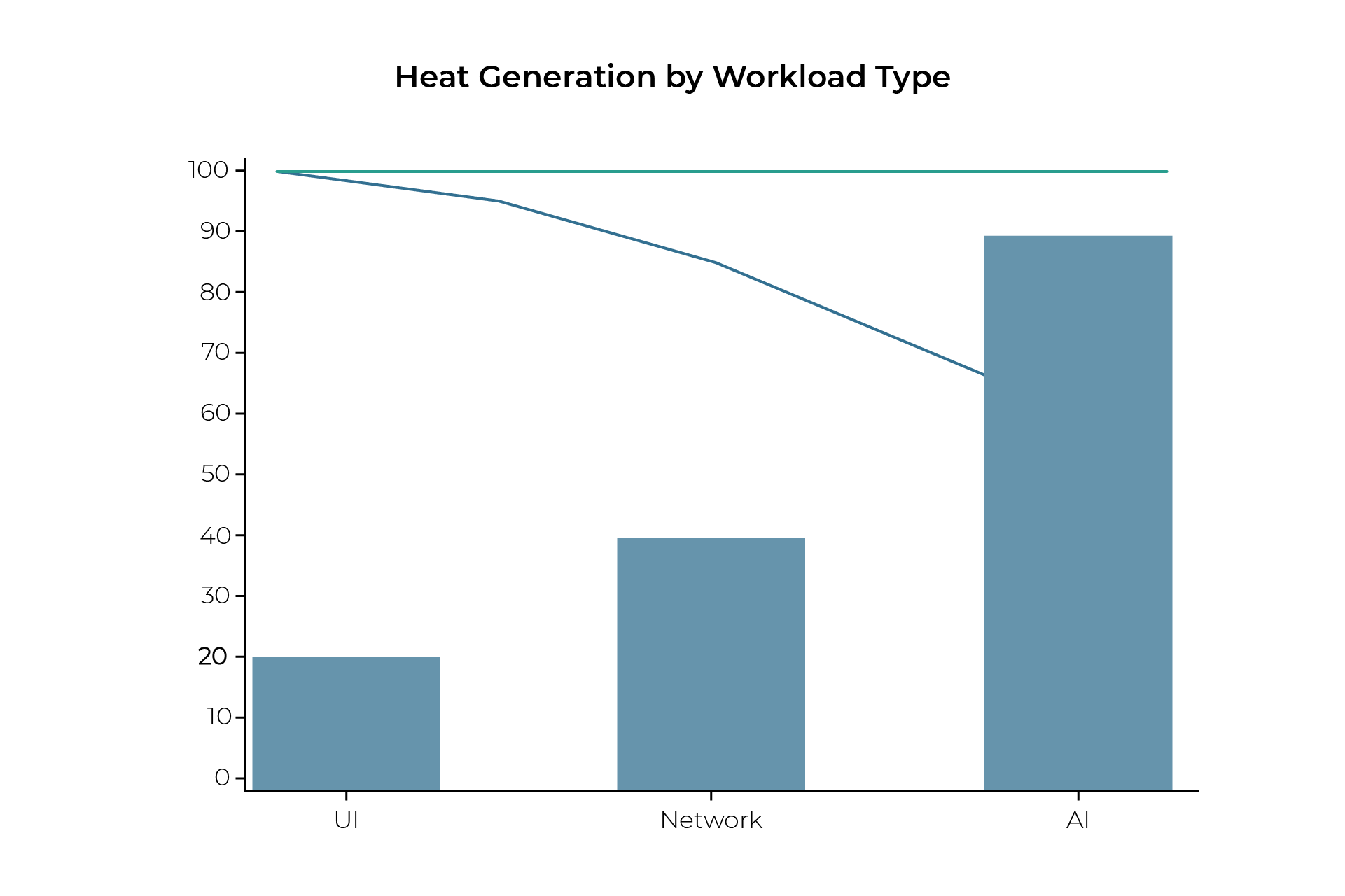
AI is not just another feature. It is also a big heat generator.
Why is AI a heat generator?
AI workloads are:
- Sustained
- CPU/GPU intensive
- Memory heavy
- And many AI pipelines also involve repetitive tasks that keep compute resources active
AI frameworks/models like TensorFlow Lite and ONNX Runtime support on-device AI.
Continuous computing implies continuous heat and that is the price. Teams should verify that AI features behave as intended under sustained load, not just during short demos.
Generative AI: The Perfect Thermal Storm
LLMs never run out. They run constantly. The following diagram visualizes the token-by-token thermal accumulation.
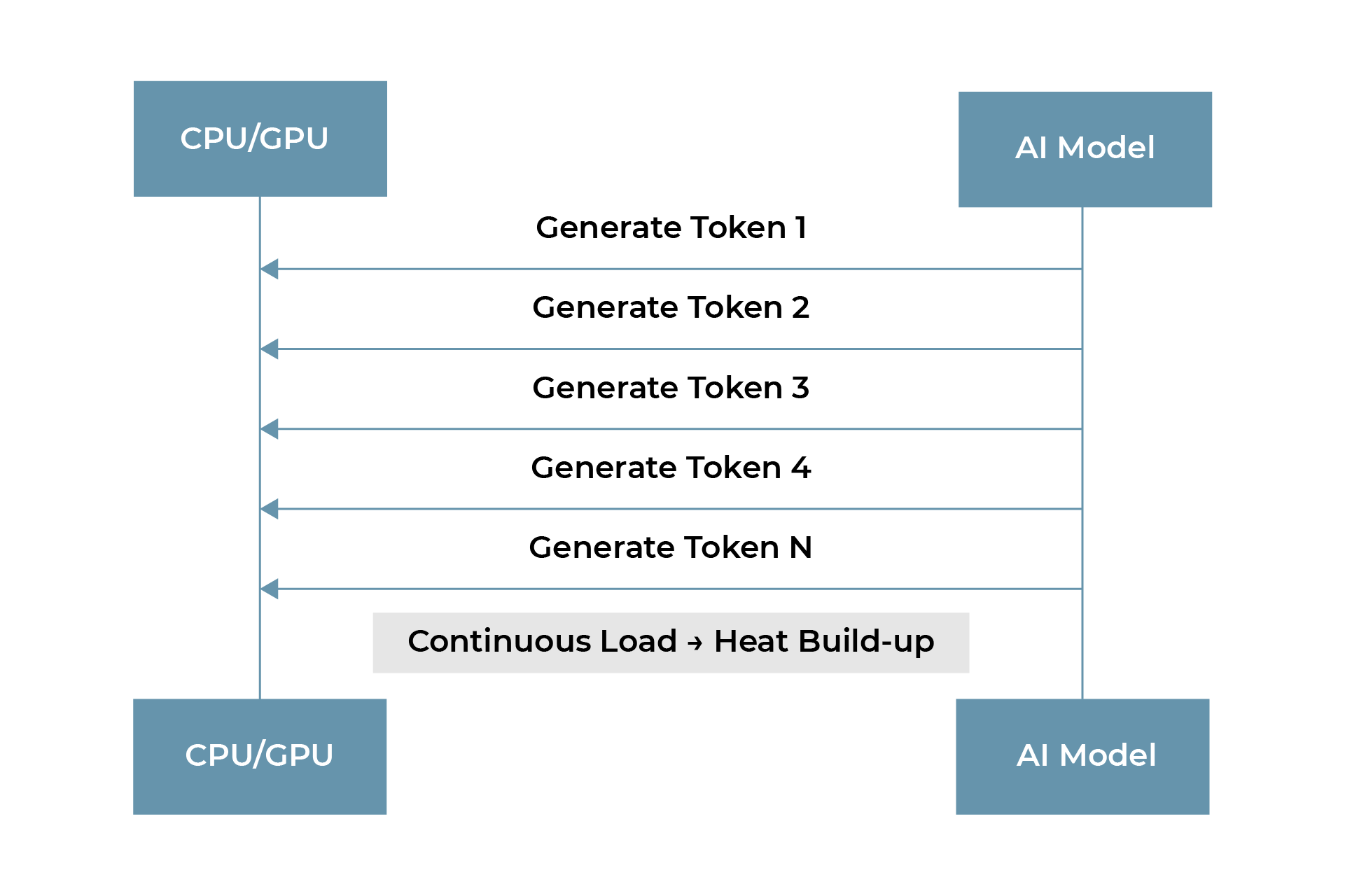
Each token:
- Calculates triggers
- Generates heat
- Prevents the device from cooling
Extended responses = more thermal throttling
Real World AI Failure Mode:
- App works well
- User prompts AI
- Device starts heating
- UI/UX downgrades
AI works but UI/UX feels downgraded.
A Small Tip: Android Thermal APIs
Get the Current Thermal Status
val thermalStatus = powerManager.currentThermalStatus
val powerManager = getSystemService(Context.POWER_SERVICE) as PowerManager
val listener = PowerManager.OnThermalStatusChangedListener { status ->
when (status) {
PowerManager.THERMAL_STATUS_NONE -> { /* normal */ }
PowerManager.THERMAL_STATUS_LIGHT -> {
// early signal – start reducing background noise
}
PowerManager.THERMAL_STATUS_MODERATE -> {
reduceAnimations()
limitBackgroundWork()
}
PowerManager.THERMAL_STATUS_SEVERE -> {
pauseHeavyTasks()
reduceFrameRate()
}
PowerManager.THERMAL_STATUS_CRITICAL -> {
stopNonEssentialFeatures()
}
}
}
powerManager.addThermalStatusListener(listener)
//Clean-up when done
powerManager.removeThermalStatusListener(listener)
Frame Rate Control (For Supported Devices)
val targetFps = 60f
if (Build.VERSION.SDK_INT > Build.VERSION_CODES.R) {
// specific ‘Surface’ object
surface.setFrameRate(
targetFps,
Surface.FRAME_RATE_COMPATIBILITY_DEFAULT,
Surface.CHANGE_FRAME_RATE_ALWAYS
)
}
Thermal-Aware Architecture
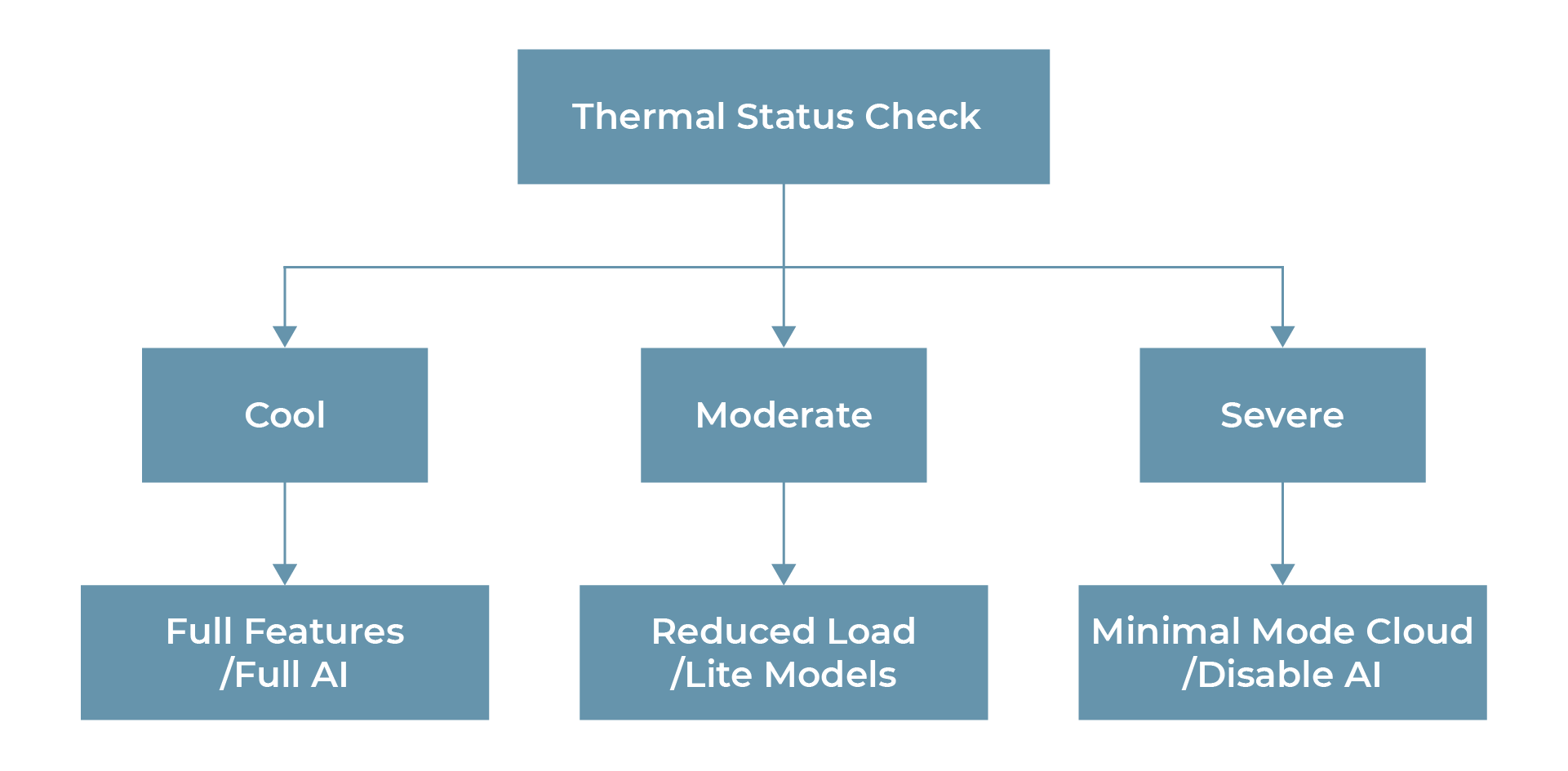
Thermal-Aware AI Design
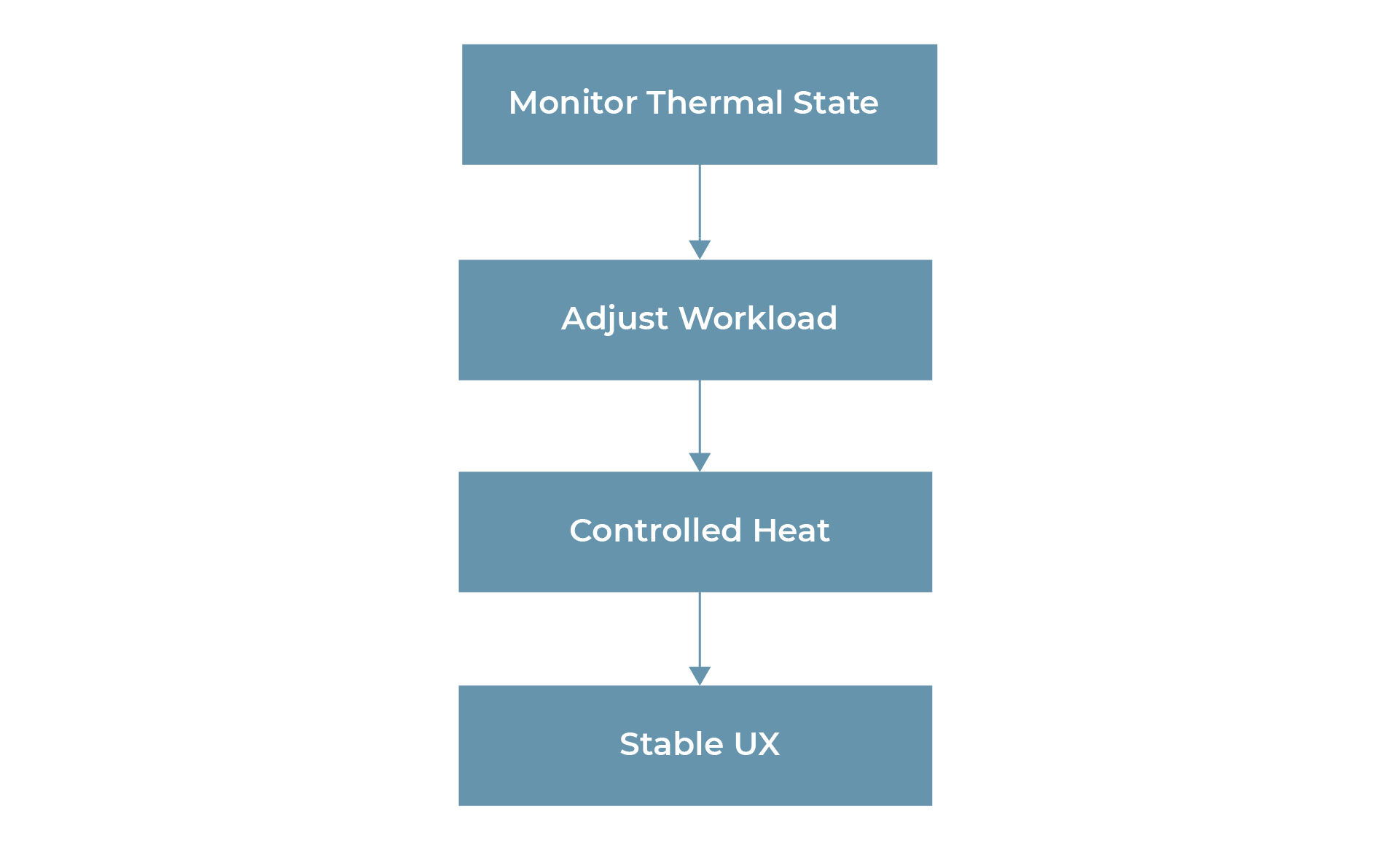
Check the Status Before Using AI
//Check status before using AI
fun canRunAI(): Boolean {
return powerManager.currentThermalStatus <
PowerManager.THERMAL_STATUS_SEVERE
}
//Or use hybrid AI pattern
if (thermalStatus < MODERATE) {
runOnDevice()
} else {
runOnCloud()
}
//Or use adaptive model pattern
fun selectModel(status: Int): Model {
return if (status < MODERATE) fullModel else liteModel } //Reduce tokens when needed val maxTokens = if (thermalStatus >= MODERATE) 50 else 200
//Implement cool down window
suspend fun runWithCooldown() {
runInference()
delay(2000)
}
Work Scheduling Strategy to Improve Performance
- Instead of launching every heavy task immediately when the user does something, teams can create a smarter managed execution model. Queue up tasks and process them in a controlled, dynamic manner. This prevents sudden spikes in CPU/GPU usage and keeps thermal stress and heat much lower on the device.
- Pair this with a graceful degradation strategy, as the device heats up, smoothly put a break on non-essential features instead of letting the performance crash suddenly. One can reduce animation complexity, lower processing intensity, or postpone non-critical background tasks, and the main benefit is more consistent responsiveness under heat.
- The goal is to keep the experience stable and responsive by proactively adapting to temperature, rather than waiting for the thermal throttling to kick in. These practices help teams fix thermal spikes before they turn into visible slowdowns.
- Avoid making these mistakes:
- Ignoring thermal APIs
- Testing only short sessions
- Blindly running AI
- Too much parallelization
- Optimizing only for benchmarks
Testing Thermal Behavior
The biggest question every developer has after designing a thermal aware architecture is: How to test this thermal aware code?
Simulate the Thermal State
Using an adb shell it is possible to simulate a device’s thermal state:
adb shell cmd thermalservice override-status 3
Monitor CPU Throttling
Using the adb shell one can monitor CPU throttling:
adb shell cat /sys/devices/system/cpu/cpu0/cpufreq/scaling_cur_freq
Manual Testing
Here are some manual testing points which can help test the thermal aware code:
- 30+ minute sessions
- Combine UI + network + AI
- Evaluate when charging
- Test in warm/hot conditions
Conclusion
Thermal throttling is no longer just a hardware issue or something that only affects gaming apps. It has quietly become a core challenge in mobile architecture that directly impacts user experience, how people perceive an app, its resultant retention, and even the business results. Modern Android apps are pushing devices harder than ever, with high refresh rate UIs, continuous background work, real-time sync, and now AI-powered features. While AI makes apps much smarter and more capable, it also brings sustained, heavy compute workloads that generate serious heat and accelerate thermal issues across the system. The dangerous part? Most of this degradation happens silently. No crashes, no obvious errors, just lag, inconsistent responsiveness, frame drops, delayed touch events, and that feeling that the app gets “heavy” and “slow” over time. Users do not blame the hardware. They blame the visible component – the app.
The industry’s old obsession with peak benchmark scores and short-session smoothness is not enough anymore. What matters now is sustained performance under real-world conditions. A feature that feels magical for the first two minutes but causes throttling after fifteen is hurting the overall experience. This is especially critical in the Generative AI era, where token-by-token inference and continuous on-device models can push devices to their thermal limits very quickly. The real question is not just “Can our app run AI?” but “Can it run AI responsibly without ruining the rest of the experience?”.
Android already gives us thermal APIs, status callbacks, workload management tools, frame rate controls, and adaptive strategies, yet most apps completely ignore them. The next generation of high-quality Android apps will not be defined only by speed or features, but by how intelligently they adapt to real device conditions.
Using thermal-aware architecture, adaptive AI execution, graceful degradation, smart workload scheduling, and sustained UX optimization will increasingly separate the polished products from the frustrating ones. If an app feels perfect during development but becomes annoying in real-world use, the problem is not always bad code or poor optimization. Sometimes, it is simply the heat that nobody designed for.
Frequently Asked Questions- Thermal Throttling
- What is thermal throttling in Android apps and why does it affect performance?
Thermal throttling kicks in when your phone heats up too much. Android cuts back on the CPU and GPU speed to keep your device from overheating. This protects the hardware, but it makes your apps run slower. You might see choppy animations, dropped frames, laggy touches, background tasks taking longer, or your app just acting odd. It usually happens during things like gaming, binge-watching videos, using navigation all the time, running AI tasks, or any long, heavy process. - How can Android developers detect and handle thermal throttling?
Android gives you tools for that through the PowerManager class with things like currentThermalStatus and OnThermalStatusChangedListener. You can keep an eye on how hot the device gets and adjust your app on the fly. If things start to heat up, your app can tone down the animations, scale back processing, pause background stuff that’s not important, switch to simpler models, or put off expensive tasks until the device cools down. The idea isn’t to stop your app, just keep things running smoothly for the user, even when the phone is hot. - Can Generative AI features cause Android apps to heat up?
Definitely. Generative AI features put a lot of stress on the device, especially if they’re running on the phone itself. Tasks like running large language models, generating images, or handling real-time processing keep the CPU, GPU, or NPU working nonstop. Unlike normal app actions that finish quickly, these AI tasks can run for seconds or minutes, heating things up fast and causing thermal throttling. If you’re adding AI, it’s smart to use lighter models, mix processing between the cloud and device, don’t run inference too often, and pay attention to the device’s heat. - How can developers test Android apps for thermal performance issues?
You won’t spot thermal issues if you only test your app for a couple of minutes. Use your app non-stop for 20–30 minutes, the way people really do: lots of scrolling, network calls, playing videos, pushing AI features all the heavy stuff together. You can also use ADB commands to fake different heat levels and watch the CPU frequency to see when throttling actually happens. Testing like this shows you performance problems before your users run into them.