

An Overview of Buildkite CI
This article provides a step-by-step, production-oriented guide to designing and implementing Continuous Integration (CI) pipelines with Buildkite. It covers organization, configuration, GitHub integration, agent clusters and queues, pipeline-as-code examples (including a simple demo that creates a text file and uploads it to Buildkite artifacts and S3). In the broader context of software development, CI pipelines play a crucial role in automating and streamlining the integration and delivery of code changes.
At the core of this approach is Continuous Integration. Every code change automatically triggers a pipeline that builds, evaluates, and validates the application before it reaches production. Buildkite acts as a continuous integration server, automating the monitoring of code repositories and executing builds to ensure seamless integration throughout the development process.
This article demonstrates how to design and implement a CI pipeline using three key platforms:
- GitHub – version control and source code repository.
- Buildkite – CI pipeline orchestration and execution engine.
- AWS S3 Bucket – object storage service that offers scalability, availability, and security.
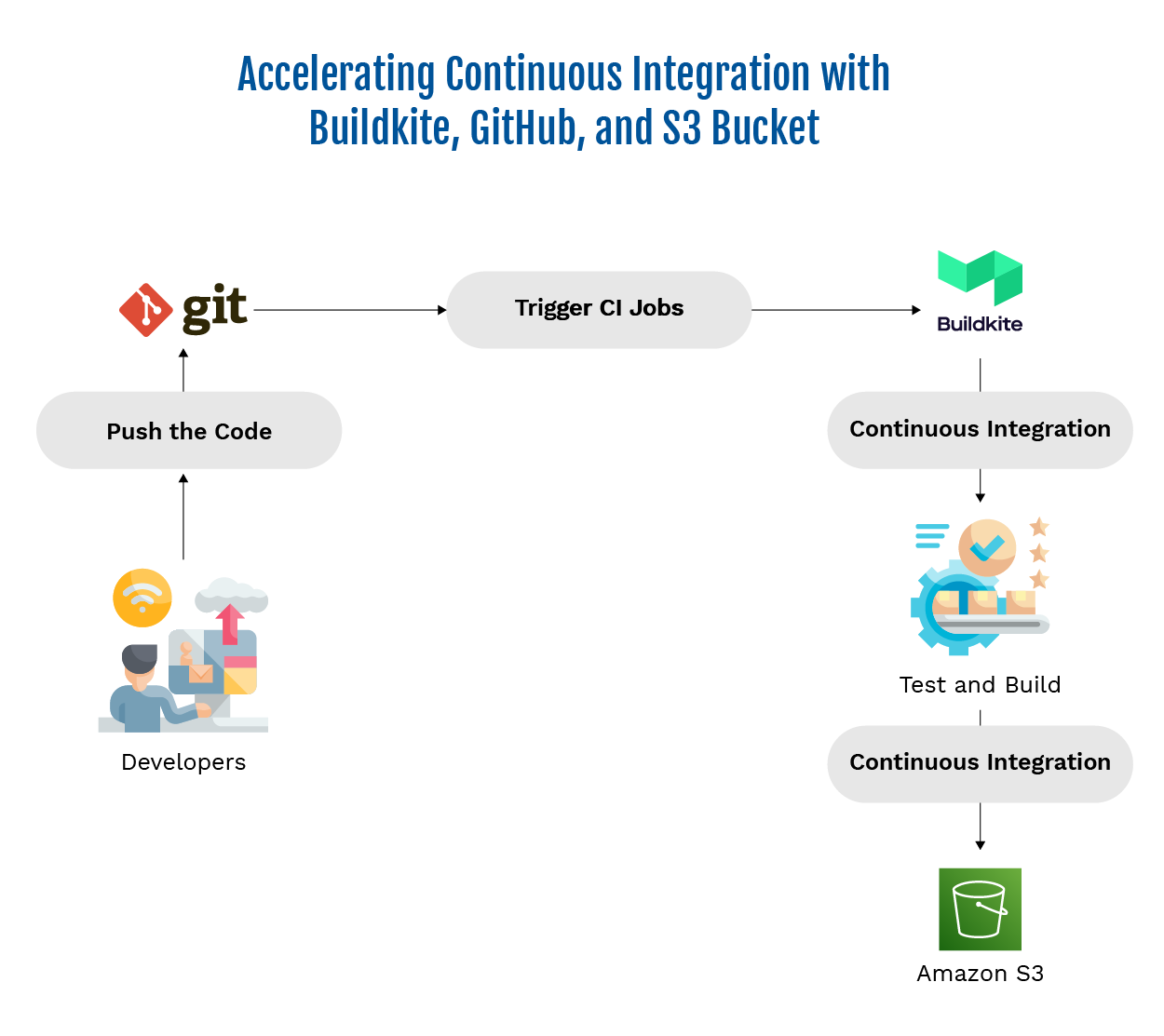
Continuous Integration (CI) Process
The steps outlined below represent key tasks within the CI process.
Before we move forward with the project, it is recommended that accounts on all the platforms mentioned in the previous discussions are created.
We start with the application code. We have used an example of a sample application here for this purpose. This application generates a sample.text file as a software artifact, which is then uploaded to both the Buildkite Artifactory and the S3 Bucket.
A Step-by-step Implementation Overview
Below are the steps from zero → production-ready pipeline.
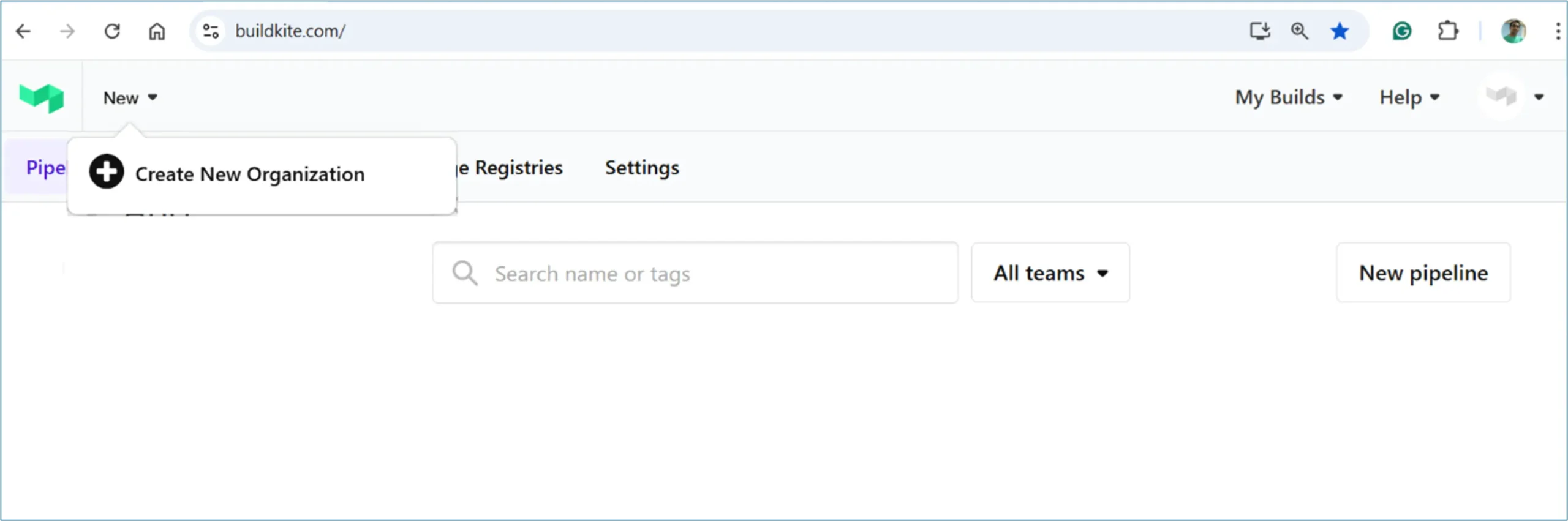
Create Buildkite Organization
- Sign in to Buildkite and create a new Organization.
- Configure organization settings**: name, slug, SSO (optional), 2FA enforcement, and API access tokens**.
- Create teams (Admin, DevOps, Developers, QA) and apply the least-privilege access. Note: Operations teams play a crucial role in the CI/CD process by facilitating collaboration and streamlining workflows between development and deployment.
Configure GitHub Integration
- Install the Buildkite GitHub App of your organization (or configure deploy keys for a single repo).
- Set repository permissions to allow webhooks for push, pull_request, and status updates.
- Verify that Buildkite receives webhook events by creating a test commit.
Configure AWS IAM and S3 Bucket
- Create the S3 Bucket, which is an example of cloud services used in CI/CD pipelines.
- Create the IAM Role in AWS with permission (ListBucket, Upload files, read files.( s3:PutObject, s3:PutObjectAcl, s3:ListBucket) for your Bucket.
- Set the AWS Variables on upload.sh file
- export AWS_ACCESS_KEY_ID=xxxx
- export AWS_SECRET_ACCESS_KEY=yyyy
- export AWS_DEFAULT_REGION=ap-south-1
When setting up AWS S3 and IAM, consider the potential costs associated with building and maintaining test or staging environments. Leveraging scalable cloud services can help manage these costs effectively while supporting accurate and efficient testing.
Let us start implementing the above with an example; here is the link of a sample BuildkiteDemo.
https://github.com/keyur163/BuildkiteDemo/tree/main
Let Us Start with Buildkite:
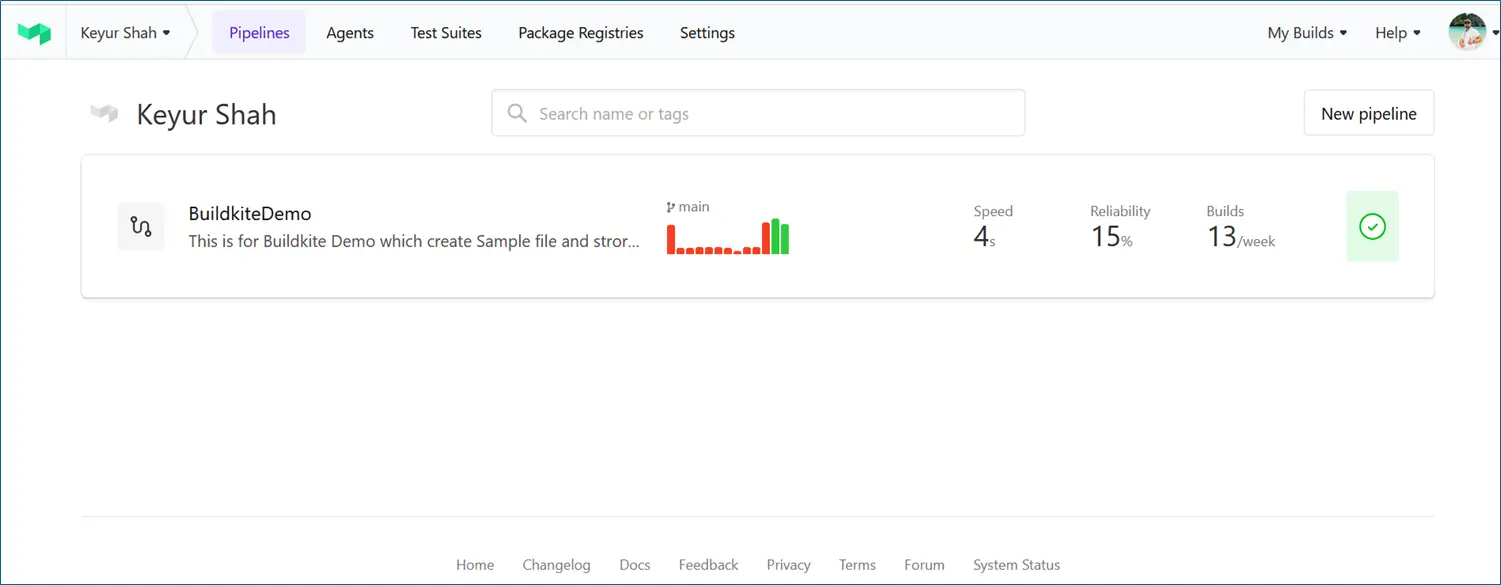
Dashboard
Create a New Organization
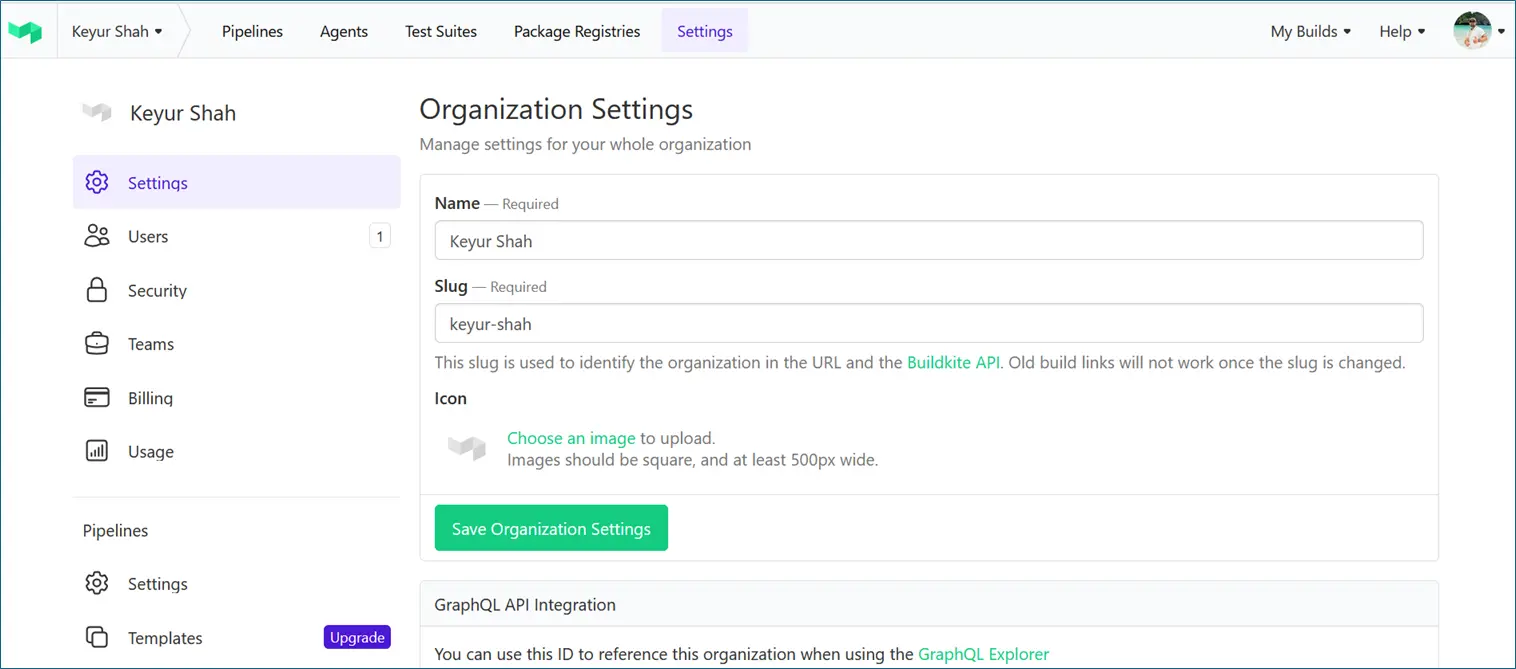
1. Organization Settings
Navigate to Organization Settings in the UI. Here you can configure:
- General → name, slug, default teams
- Security → enforce SSO, 2FA, audit logs
- Billing → manage subscription and usage
- Integrations → GitHub Apps, Slack notifications, etc.
- API Access → create API tokens for automation
2. Setup Integrations
- Integrations extend CI/CD workflows, connect with developer tools, and enhance automation
- Source Control IntegrationsBuildkite integrates natively with Git-based providers:
- GitHub / GitHub Enterprise
- GitLab / GitLab Self-managed
- Bitbucket Cloud / Bitbucket Server
- Notifications and ChatOpsKeep teams updated in real-time:
- Slack – Post build start/success/failure notifications to channels
- Microsoft Teams – Similar notifications with adaptive cards
- Email – Trigger email alerts for failed builds or deploys
- Webhook Notifications – Send build events to custom endpoints or monitoring systems

3. Set Up Teams
- Buildkite uses Teams to manage permissions
- Default roles:
- Admin – full access to org, billing, pipelines, agents
- Maintainer – manage pipelines, builds, and teams
- Member – trigger builds, see logs
- Viewer – read-only access

4. Setup Agents and Cluster
The Buildkite agent is a small, reliable and cross-platform build runner that makes it easy to run automated builds on your own infrastructure.
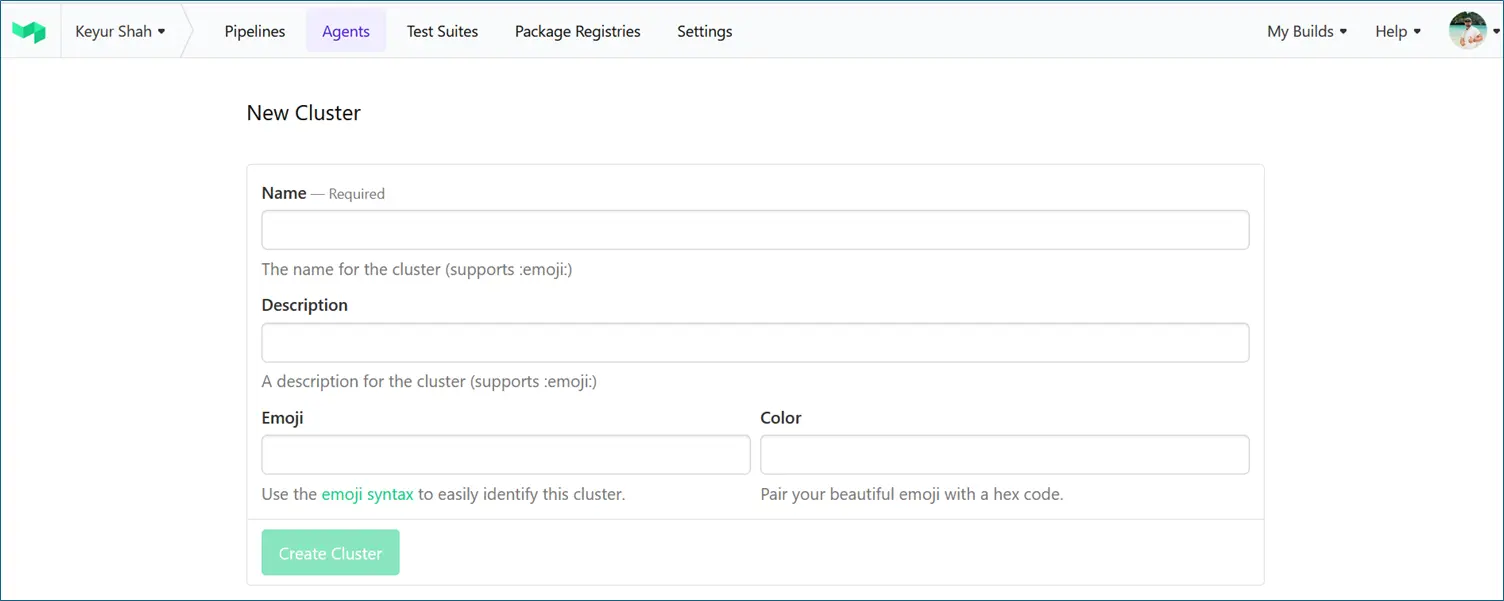
- A Cluster in Buildkite is a logical grouping of agents. We can store secrets inside the cluster. Inside the cluster we need to create Queues.
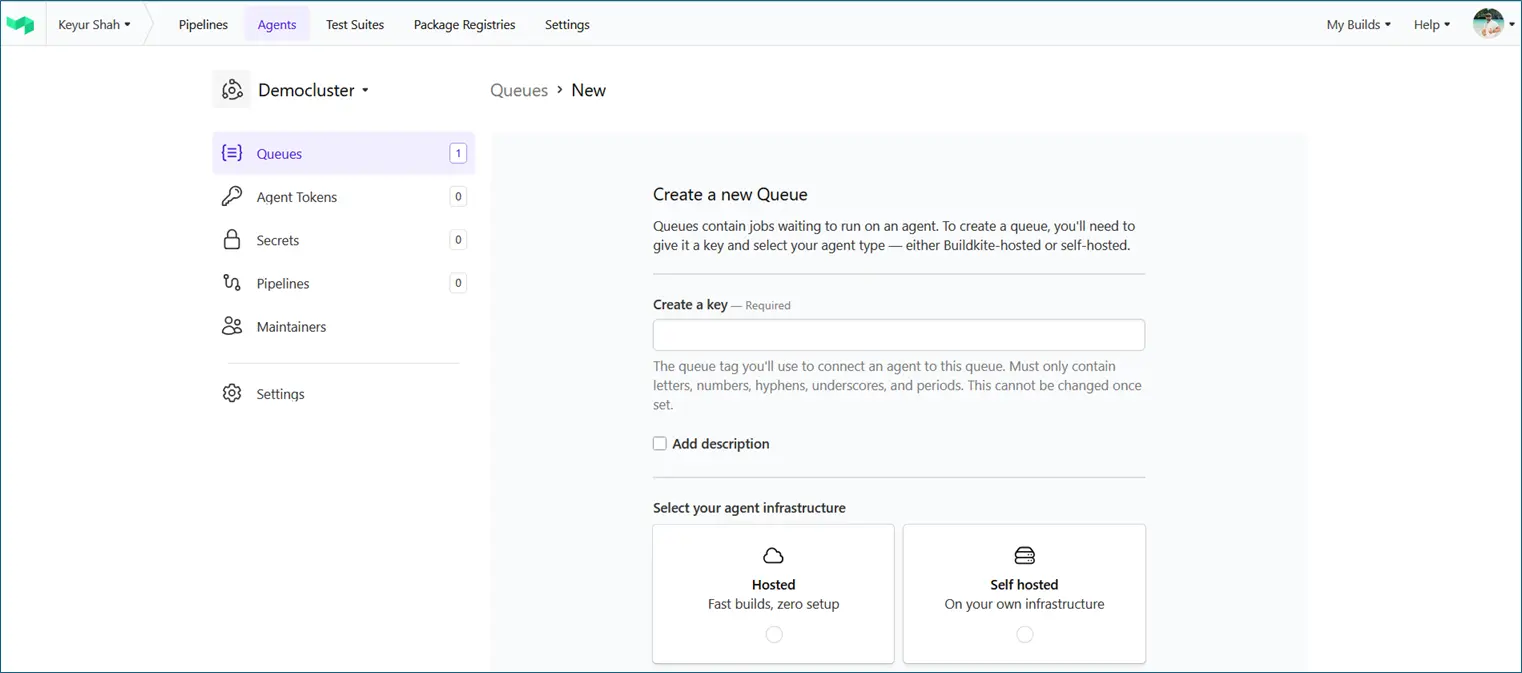
- A Queue represents a flavour of the agent; a label that determines what kind of jobs that agent will run.
- Queues help target specific jobs (e.g., only Docker builds, only GPU workloads, MAC Queue, etc.).
- Step: Buildkite → Organization → Agents → New Cluster
- Provide a cluster name and description
- Agents → Cluster → New Queues
- Create a key for the queue (Name of the queue)
- Select the agent infrastructure (Hosted or self-hosted)
- Select the Operating System (Linux, MAC, Windows)
- One can configure capacity, agent image, etc.
5. Configure Pipelines
- Pipelines belong to an organization.
- Each pipeline has:
- Repository link (GitHub, GitLab, Bitbucket)
- Pipeline.yaml definition
- Access controls (restrict which teams can see or build it)

There are diverse ways to configure the pipeline:
- Configure the Pipeline in UI
- Configure with pipeline.yaml
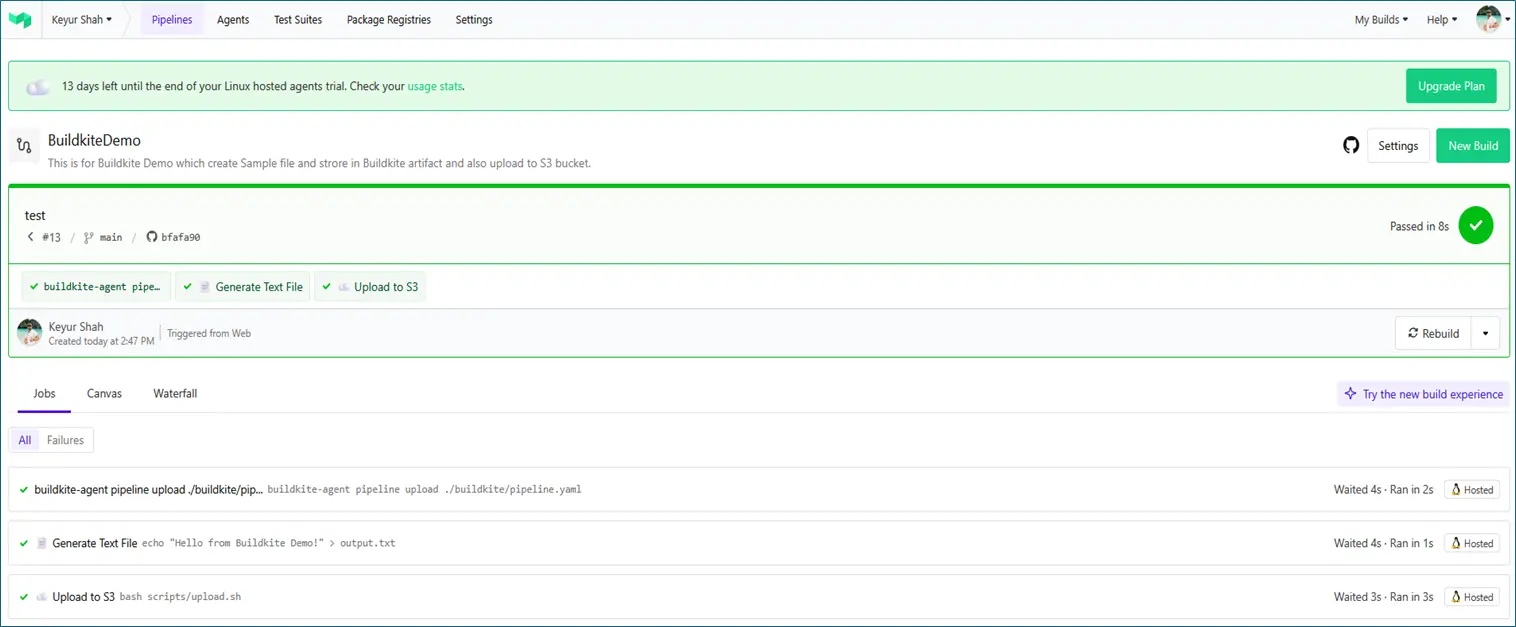
Here we recommend configuring the pipeline with pipeline.yaml. The pipeline definition lives in your repo under ./buildkite/pipeline.yaml
In the Buildkite UI → Go to your Organization → Pipelines → New Pipeline.
- Pipeline name
- Repository URL (GitHub, GitLab, Bitbucket, etc.)
- Select authentication (GitHub App, SSH key, or deploy key)

Example for YAML Steps
steps:
– command: “buildkite-agent pipeline upload ./buildkite/pipeline.yaml”
agents:
queue: “default”Triggering Pipelines
Pipelines can be triggered:
- Automatically → via webhooks on GitHub/GitLab/Bitbucket (push, PR, merge)
- Manually → run from Buildkite UI or API
- Scheduled → cron jobs (nightly builds, weekly deploys)
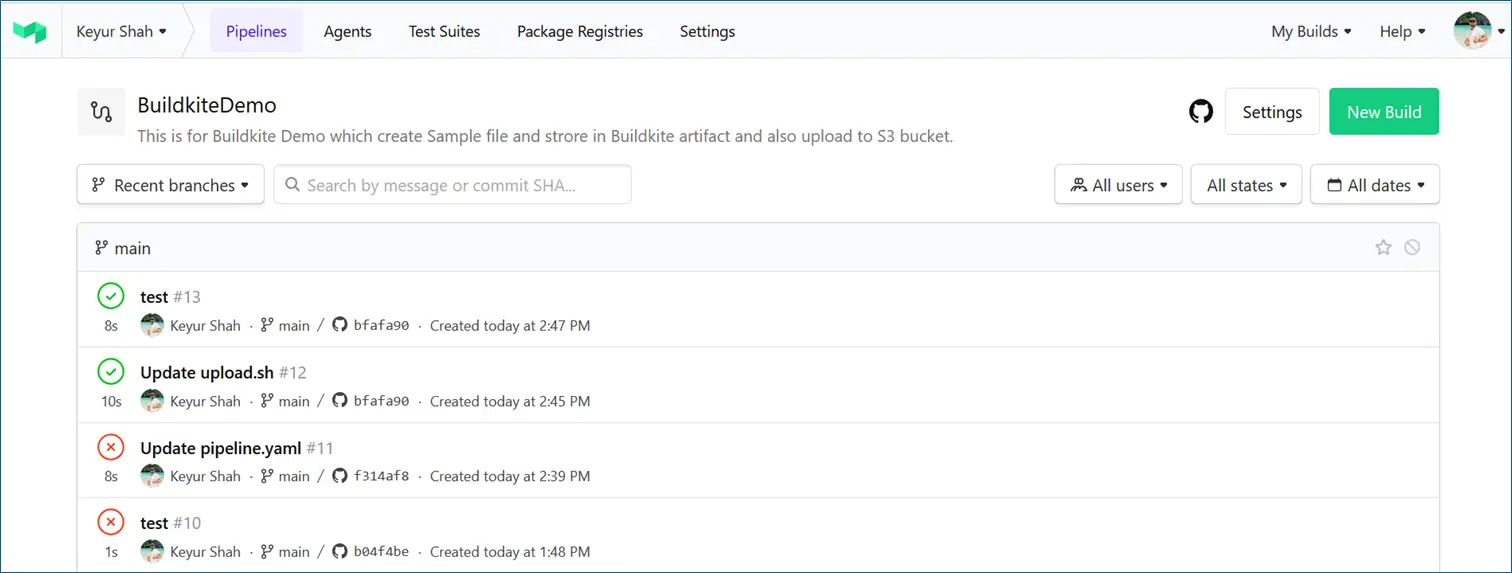
- Step: Pipelines → BuildkiteDemo → New Build
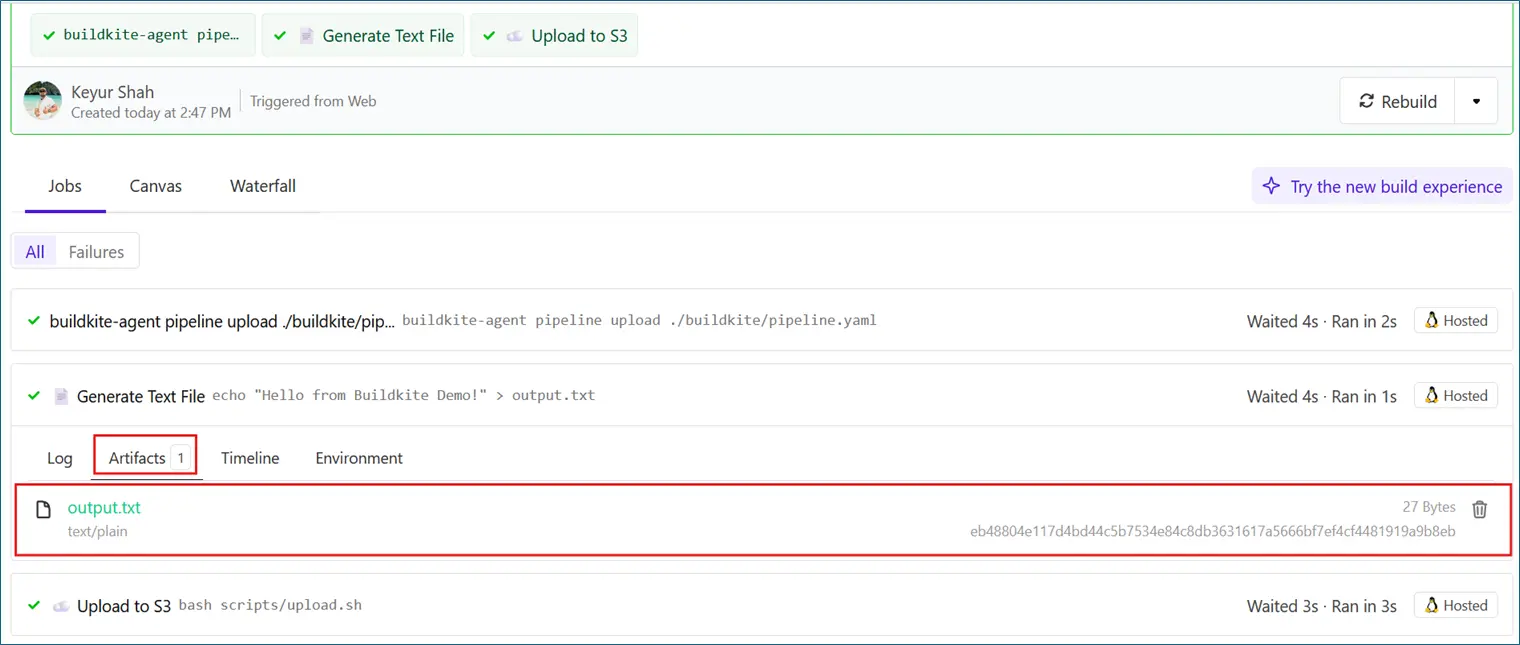
File Uploaded to Buildkite Artifacts
File Uploaded to S3 Bucket

Best Practices for CI/CD
Implementing robust CI/CD pipelines is essential for delivering high-quality software quickly and reliably. By following industry best practices, engineering teams can maximize the benefits of continuous integration, continuous deployment, and continuous delivery, while minimizing errors and bottlenecks in the software delivery process. Here are some key practices to consider:
- Automate Everything: Automate the build, test, and deployment process as much as possible. Use an automated test suite to validate every code change, ensuring that new features and bug fixes do not introduce regressions. Automated testing should cover unit, integration, and end-to-end tests, and should be automatically run on every commit or pull request.
- Keep Pipelines Fast and Reliable: Optimize your CI process to provide rapid feedback. A slow pipeline can discourage frequent code changes and slow down development. Use parallelization, caching, and efficient scripts to keep build times short, and monitor for flaky tests that can undermine trust in the pipeline.
- Version Control Everything: Store all code, configuration files, and pipeline definitions (such as pipeline.yaml) in a version control system like GitHub. This ensures traceability, supports collaboration, and allows you to roll back to a previous version if needed.
- Isolate Environments: Use separate environments for testing and production. Deploy code to a test environment first, where automated tests and manual QA can be performed before promoting to the production environment. Tools like Docker containers can help ensure consistency across environments.
- Enforce Access Control and Security: Limit access to critical resources and deployment processes using role-based access control. Only allow trusted team members to approve deployments to production, and use secrets management to keep credentials secure. Regularly audit permissions and review access logs for unusual activity.
- Monitor and Roll Back: Integrate monitoring and alerting into your deployment process. If a new version causes issues in production, have scripts or tools in place to quickly roll back to a stable release. This minimizes downtime and impact on users and customers.
- Use One Pipeline per Repository: Maintain a single, clear pipeline for each code base or repository. This makes it easier to manage, scale, and troubleshoot the CI/CD workflow, and ensures that all code changes are subject to the same quality gates.
- Work Closely as a Team: Encourage collaboration by using pull requests and code reviews as part of your workflow. Allowing developers to review each other’s code helps catch errors early and spreads knowledge across the engineering team.
- Document and Communicate: Keep documentation up to date for your CI/CD process, pipeline configuration, and deployment scripts. Use notifications (via Slack, email, or other tools) to keep the team informed about build status, deployments, and failures.
- Continuously Improve: Regularly review your CI/CD pipelines and processes. Gather feedback from developers, monitor key metrics, and iterate on your setup to support new features, tools, and business requirements.
By following these best practices, teams can deliver business value faster, reduce deployment risks, and maintain full control over their software delivery lifecycle.
Benefits of using Buildkite
- Hybrid Architecture (Cloud + Your Infra)
- Security and Compliance: There is no need to expose internal codebases or credentials to third-party SaaS runners
- Supports SSO (SAML, OIDC), 2FA, audit logs
- Pipeline-as-Code: Pipelines defined in .buildkite/pipeline.yml under version control
- Built-in artifact storage and sharing between steps
- Ecosystem and Integrations: GitHub, GitLab, Bitbucket integration. Slack/MS Teams for notifications. Buildkite can also integrate with platforms like Red Hat to enhance CI/CD pipelines.
- Cost Efficiency: Buildkite charges by pipelines, not by build minutes
Trending CI tools along with Buildkite
- GitLab CI/CD
- CircleCI
- Jenkins
- Harness
- AWS Code Pipeline
- Travis CI
Conclusion
Continuous Integration is a cornerstone of modern software delivery — enabling teams to catch issues early, deliver faster, and maintain reliability. Buildkite stands out as a powerful CI/CD platform because of its hybrid architecture, which combines the simplicity of a managed control plane with the security, flexibility, and scalability of running build agents inside your own infrastructure.
📘References
https://buildkite.com/docs
https://buildkite.com/resources/blog/
https://forum.buildkite.community/
https://buildkite.com/docs/tutorials/ci-cd-aws
https://github.com/buildkite/examples